Device Configuration
Once connected to a Station Display, the Home screen shows the current device settings. Tap Edit to modify them.
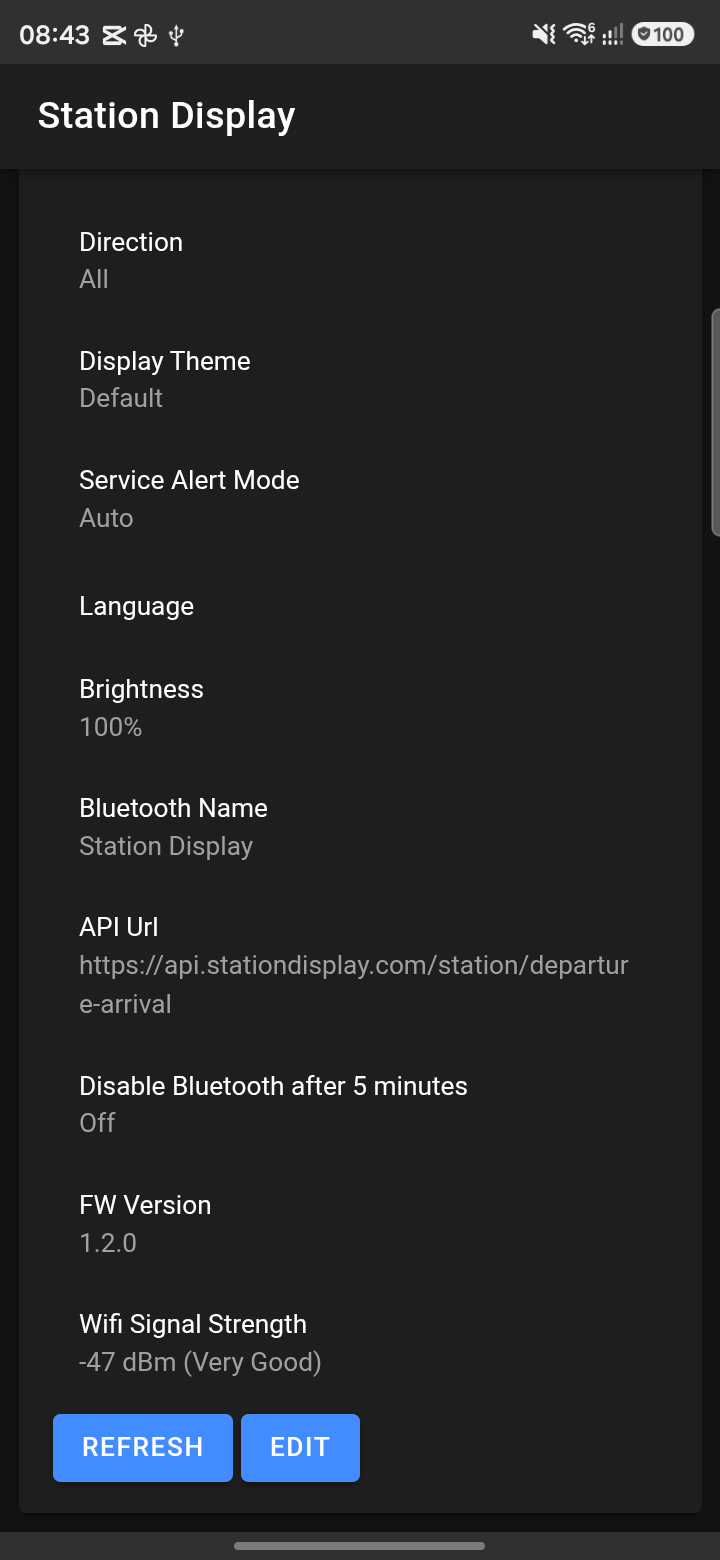
Current settings overview after connecting
WiFi Settings
Configure the WiFi network the display connects to for fetching departure data.
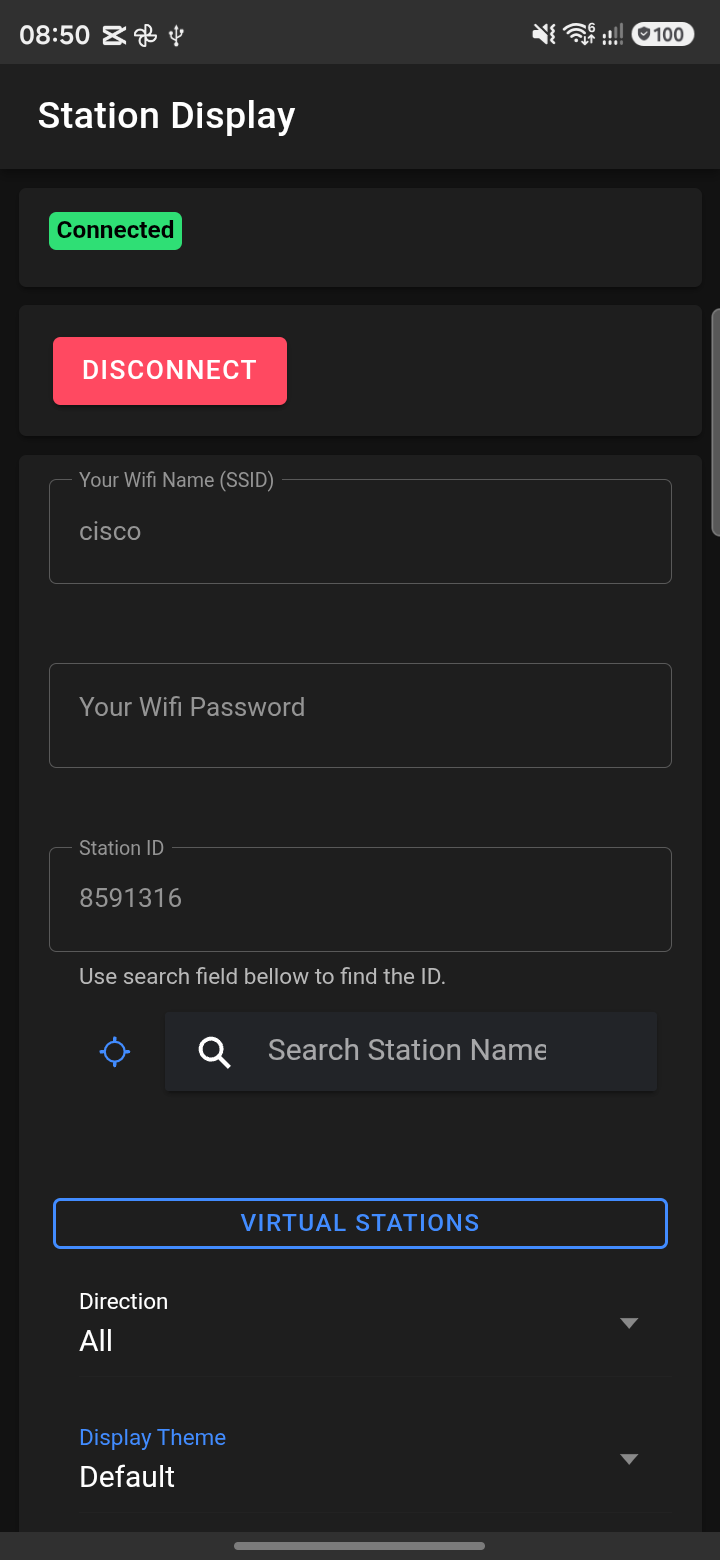
WiFi SSID and password fields
- WiFi Name (SSID) — Enter your network name. The reset button restores the default. If the device previously connected to a WiFi network, the current-connection button fills in the active SSID.
- WiFi Password — Hidden input field. Only written to the device when changed.

Station Display wifi status
Station Settings
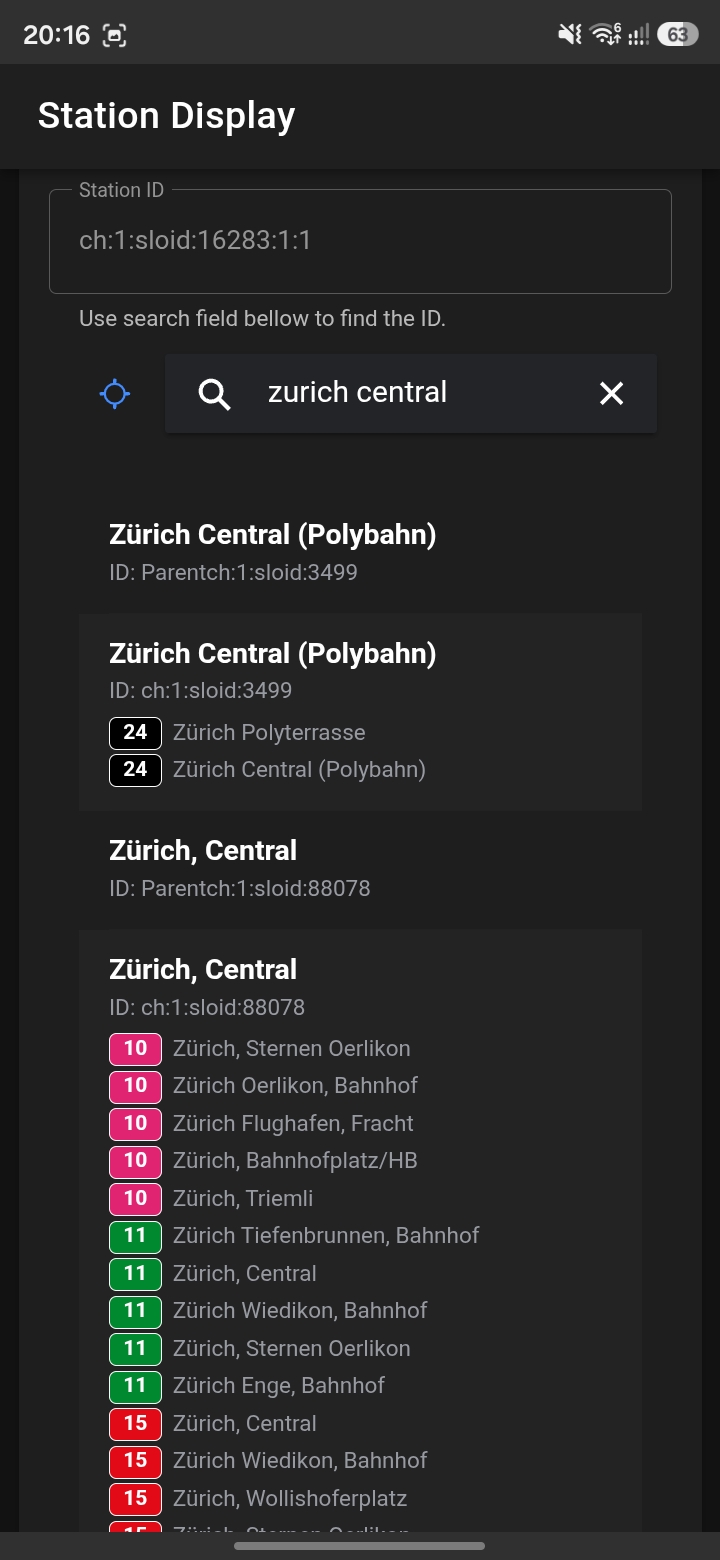
Station ID search with results
- Station ID — Search for a station by name or use the location icon to find nearby stops. Tap a result to select it. The station ID field is populated automatically.
- Direction — Filter departures by direction:
- All — Show all departures
- In — Trains/buses arriving at the station
- Out — Trains/buses departing from the station
Display Settings
- Display Theme — Visual style of the e-paper display:
- Default — Standard layout
- With Titlebar — Includes a header bar
- High Contrast — Maximum contrast for readability
- High Contrast with Titlebar — High contrast with header
- Classic — Classic design
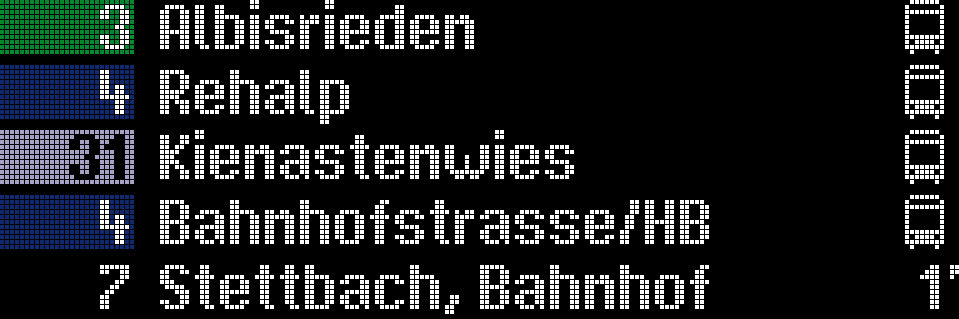
Station Display Theme: Default
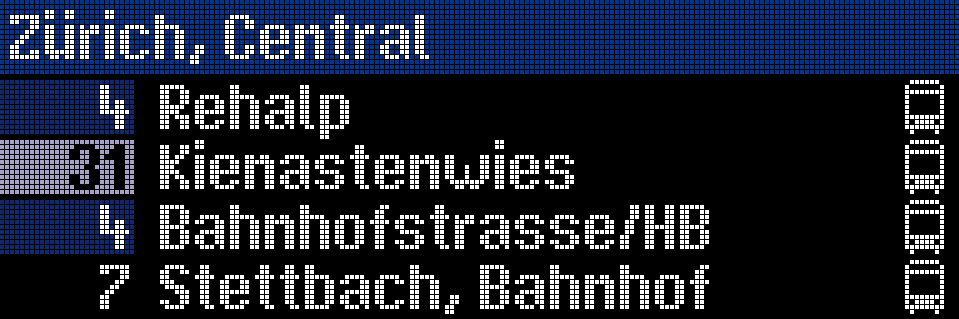
Station Display Theme: With Titlebar
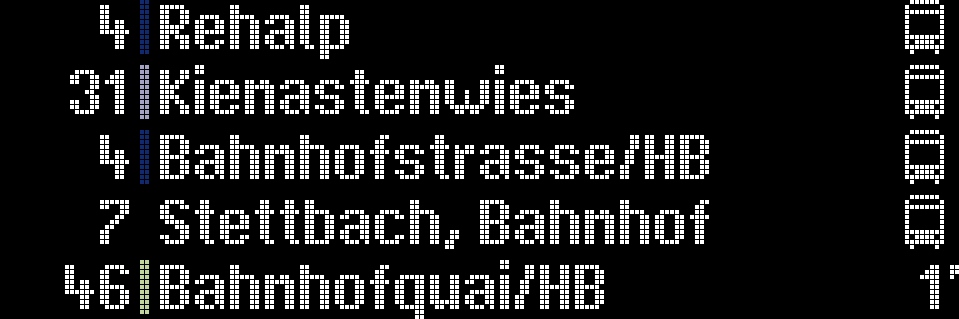
Station Display Theme: High Contrast
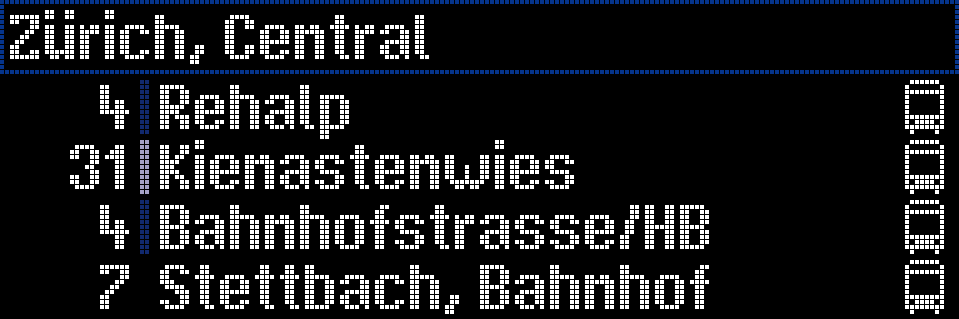
Station Display Theme: Contrast with Titlebar
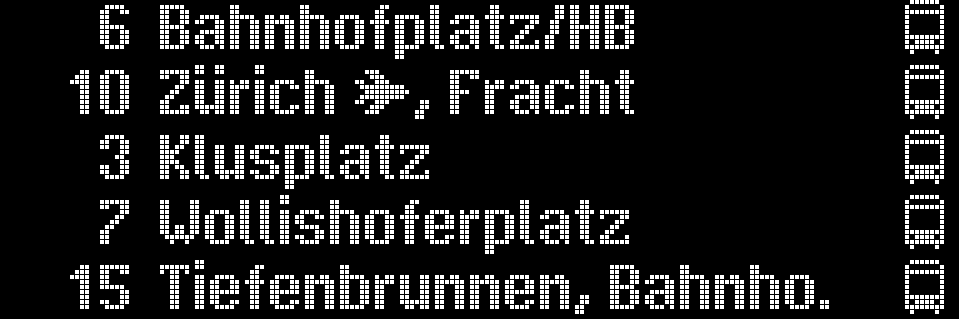
Station Display Theme: Classic
- Brightness — Set the display brightness from 10% to 100%, or Automatic (ambient-light adjusted).
- Service Alert Mode — How disruption alerts appear: Auto, Off, Scroll, or Fullscreen.
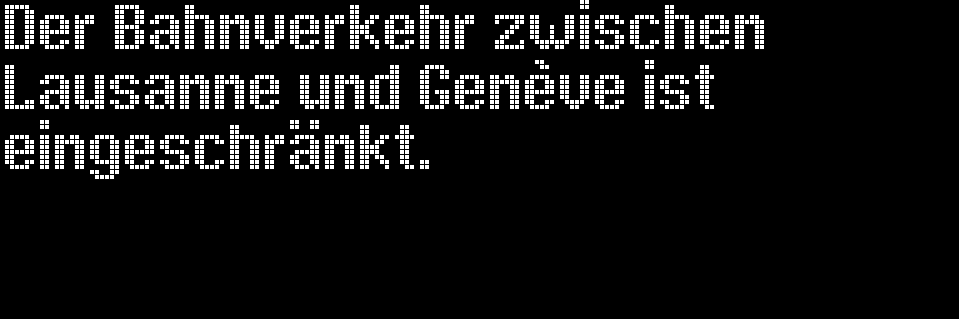
Station Display Alert: Fullscreen
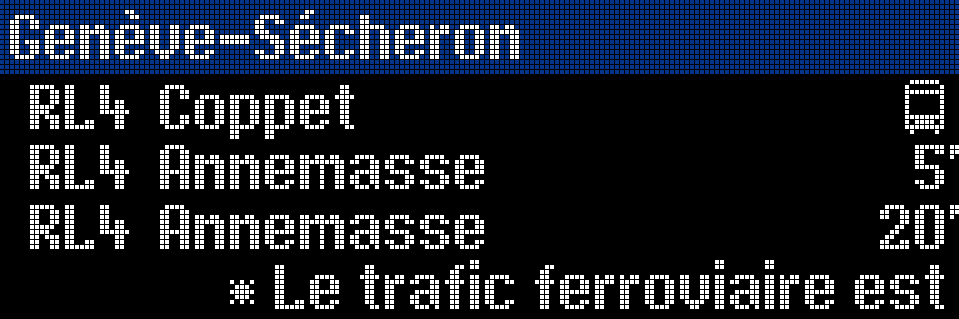
Station Display Alert: Scroll
- Language — Display language: English, Deutsch, Français, or Italiano. This affects the displayed service alerts as well.
- Titlebar Color — Choose a custom background color and text color for the titlebar. Only available with titlebar-enabled themes.
- Text Color — Set the color of the departure time and destination text.
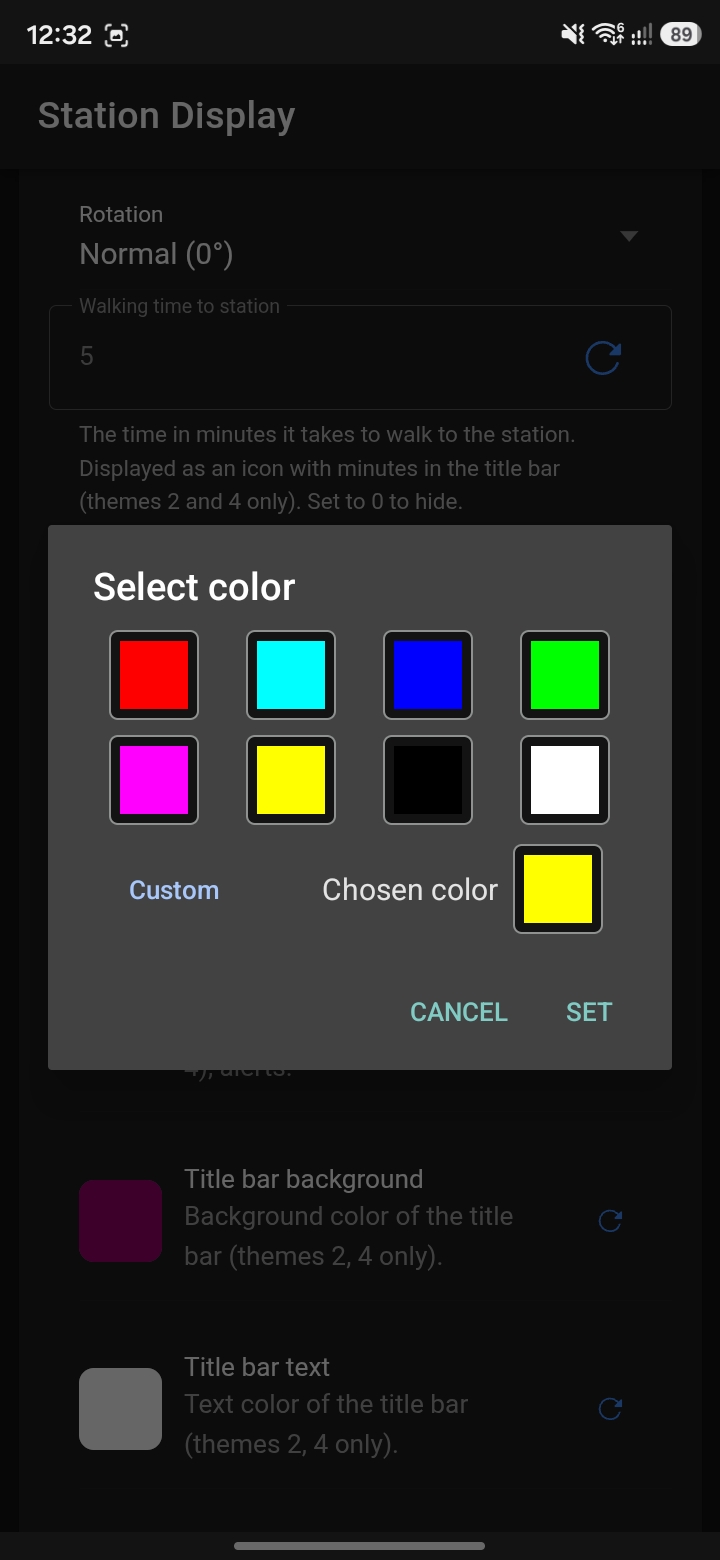
Configuring titlebar and text colors
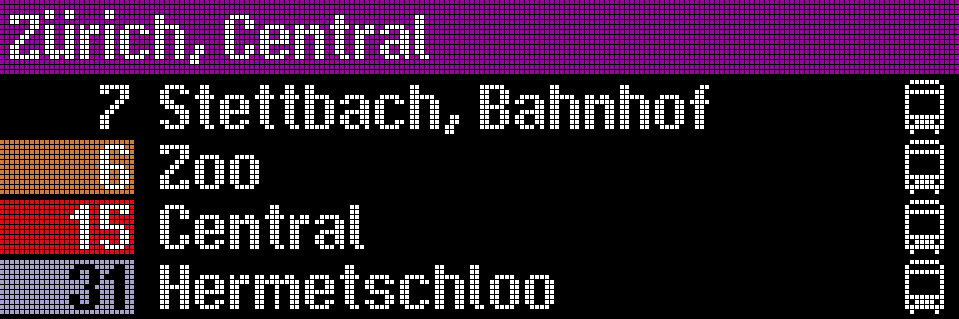
Titlebar with custom color
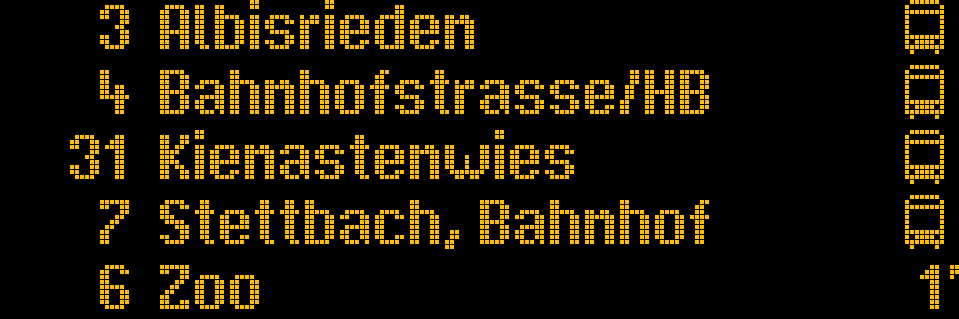
Departure text with custom color
- Rotation — Rotate the display output: 0° (default) or 180°. Allows mounting the display in any orientation.
- Walking Time — Set how many minutes it takes to walk from the display location to the platform. A walking icon appears on connections that would be reachable without the walking time, but are no longer reachable with it.
- Minimum Departure Delay — Set a time buffer in minutes to filter out connections with tight transfer times. Useful when your stop is a few minutes away from the display.
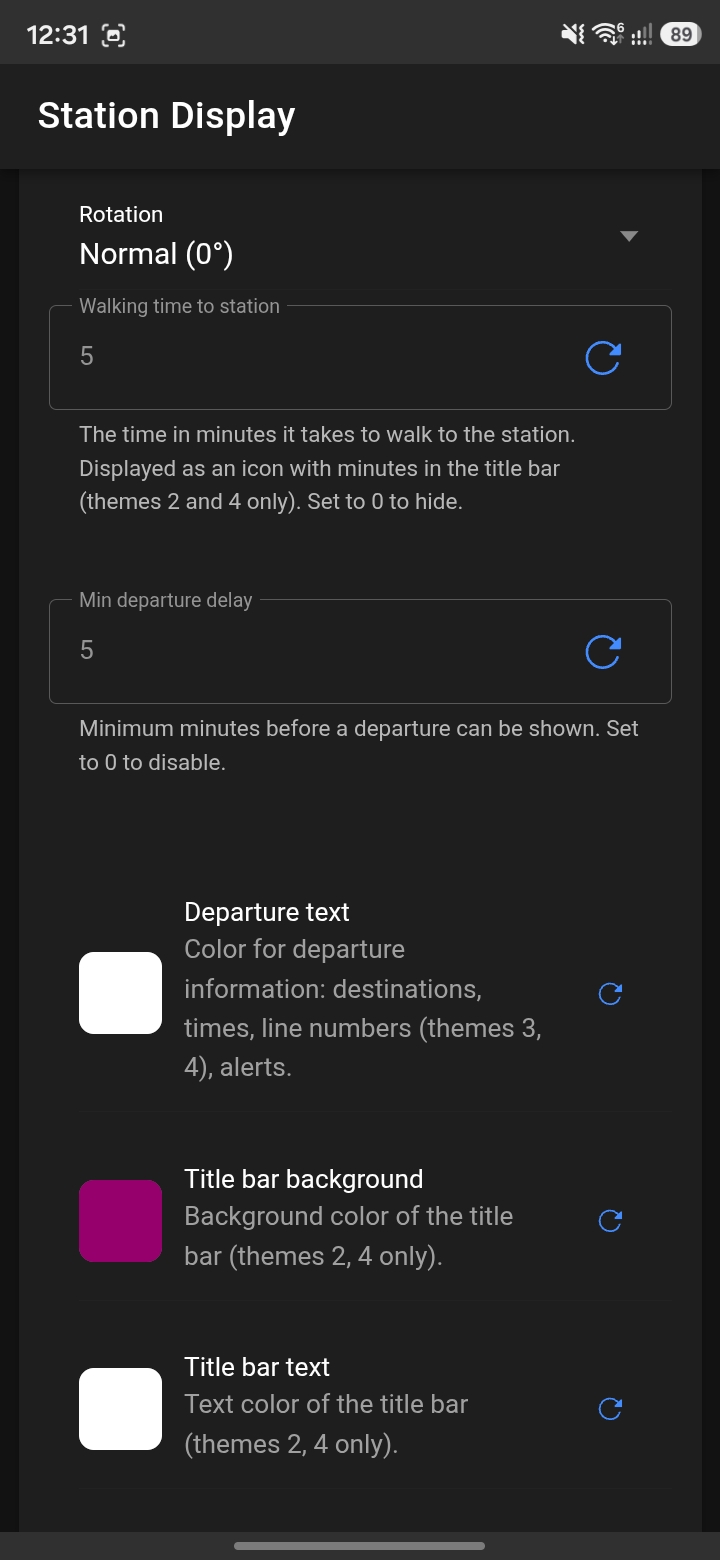
Configuring walking time and departure delay
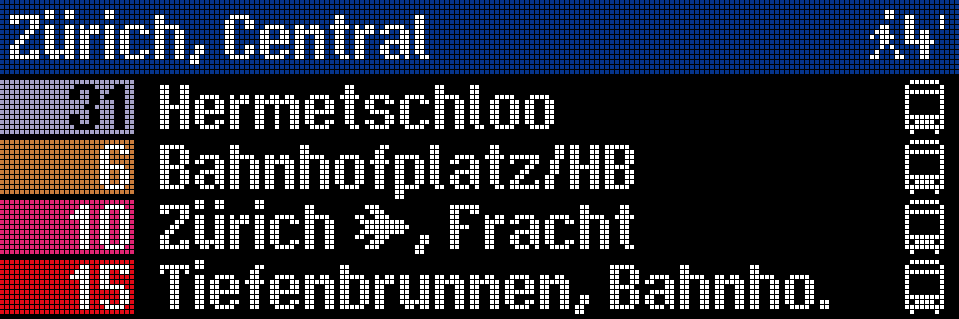
Walking time icon on the departure board
Advanced Settings
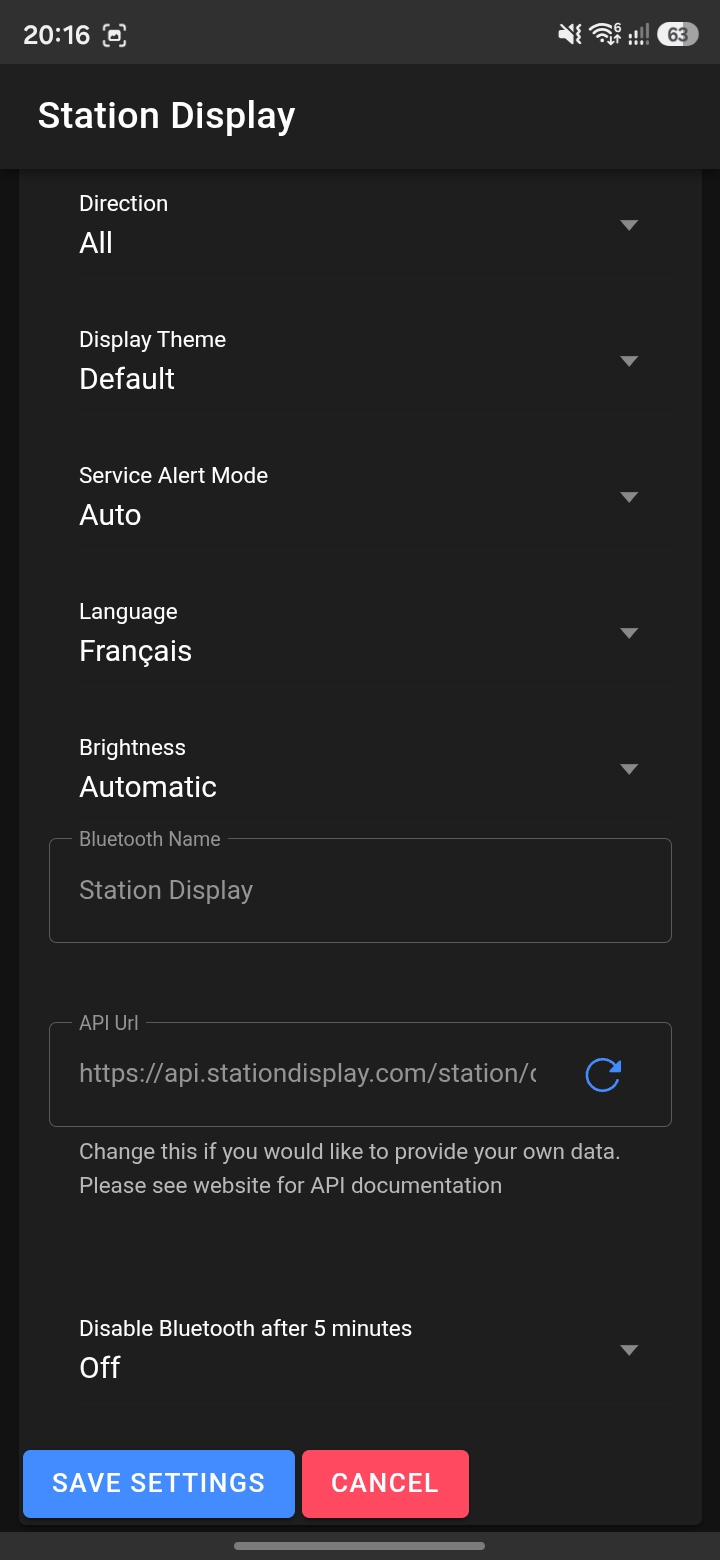
Station Advanced Settings
Tap Advanced Settings to reveal additional options:
- Bluetooth Name — Custom BLE device name for the display. For when you have more than one device.
- API URL — Override the backend API endpoint (default: https://api.stationdisplay.com/station/departure-arrival) for departure data. Please see API.md for api documentation. At this time you will need to serve custom data via SSL but the certificate can be self-signed.
- Bluetooth Timeout — Toggle whether Bluetooth auto-disables after 5 minutes (power cycle required to re-enable). In public spaces it is highly recommened to leave this settings to auto disable Bluetooth.
Read-Only Fields
- Serial Number — Device serial identifier
- Firmware Version — Current firmware version
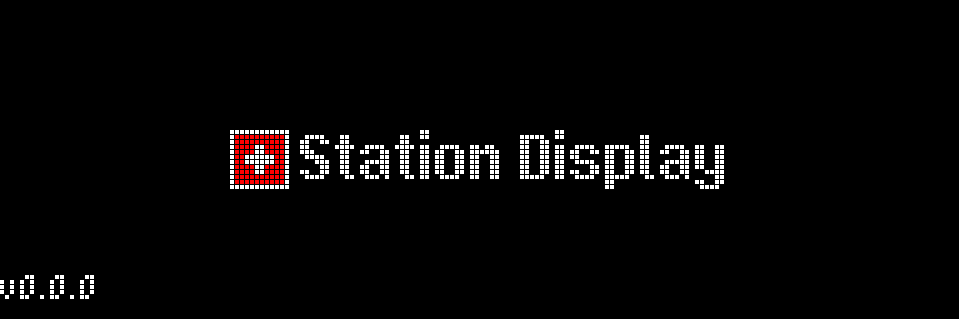
Station Display Firmware Version on boot
- Hardware Version — PCB revision
- WiFi Signal Strength — Current RSSI in dBm with quality label
Saving Changes
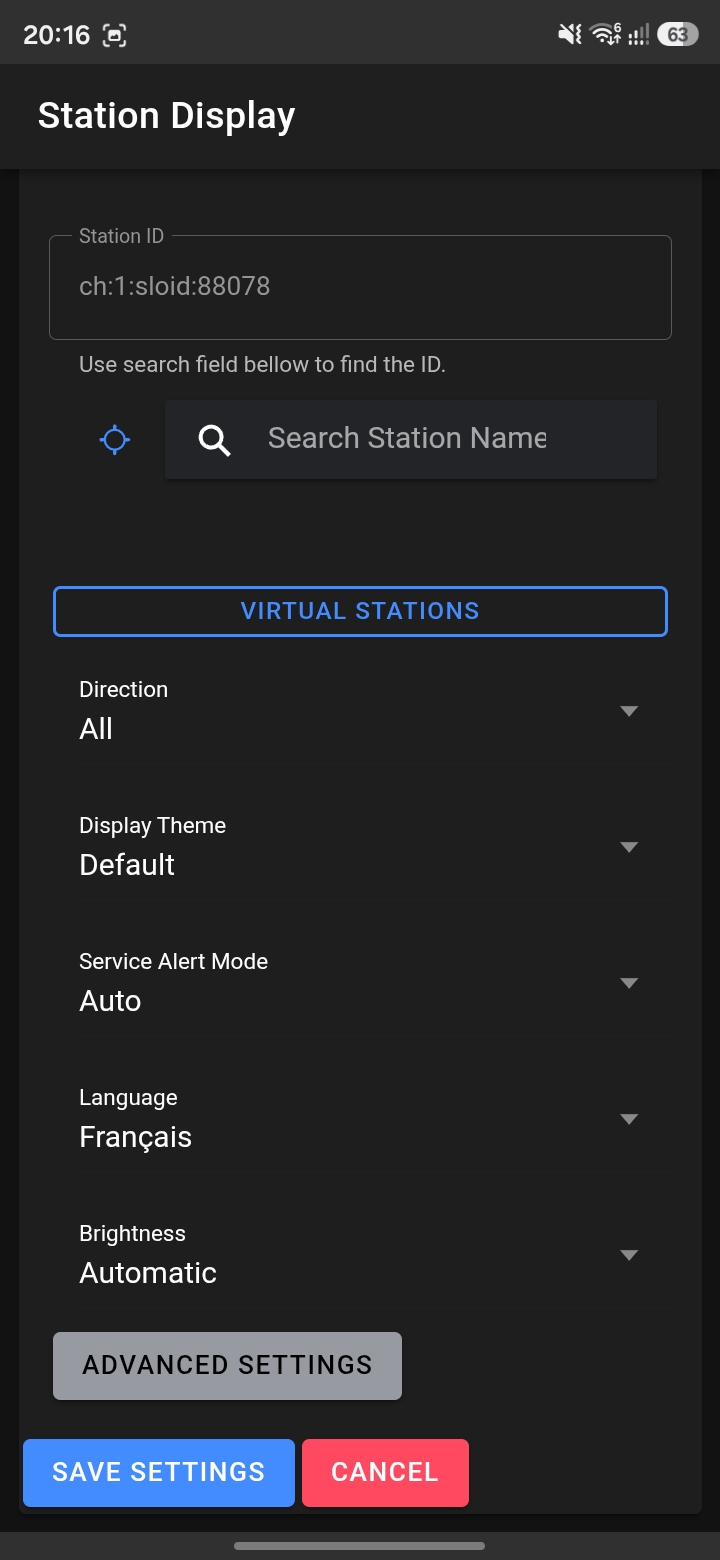
Station Save Settings
After editing, tap Save Settings. The display receives the new values and reboots if required to apply them.